How to add your card to Google (Gemini / Google One) and subscribe
Gemini plans are part of Google One and are charged to the payment method in your Google account. Add the card in Google payments center first, then subscribe. Card number, expiry, CVC and billing address are in your card email.
Steps
- 1
Click Upgrade
Open gemini.google.com in a browser and click "Upgrade" (top right).
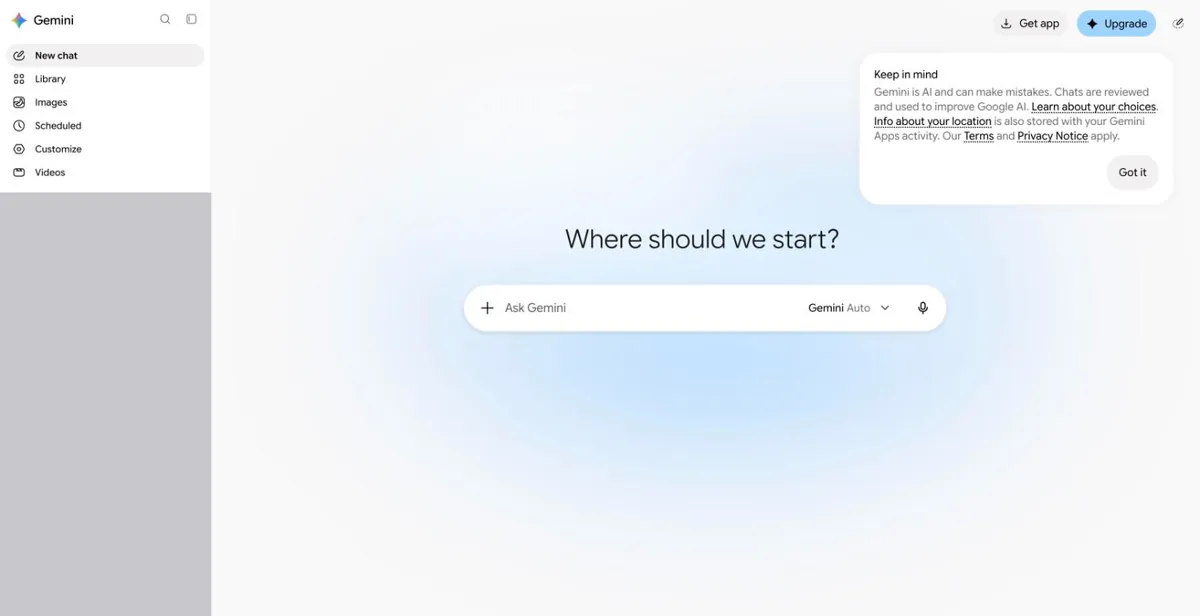
Gemini home (sidebar history masked) - 2
Pick a plan
The Google One plans page opens. Pick Google AI Plus, AI Pro or another plan. Intro prices often last a few months, then the full price is charged — keep enough on the card before renewal.
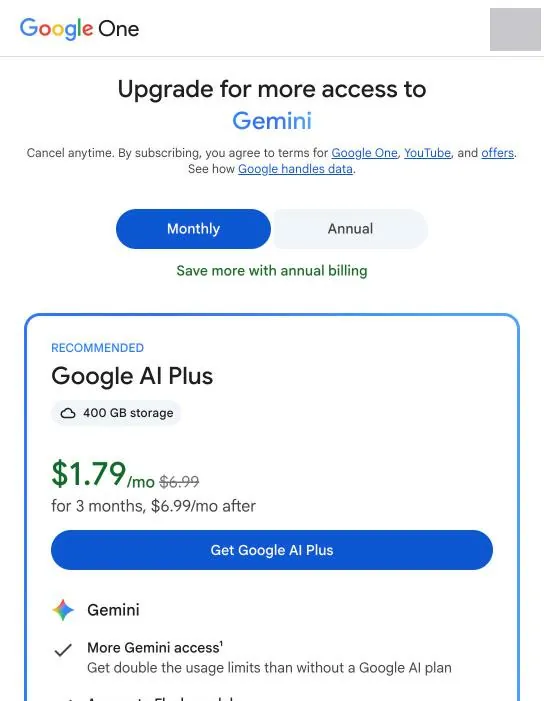
Google One plans (narrow window; prices are what the page shows you) - 3
Go to payments center
Add the card first: open pay.google.com → "Payment methods". It lists the payment methods already in your account.
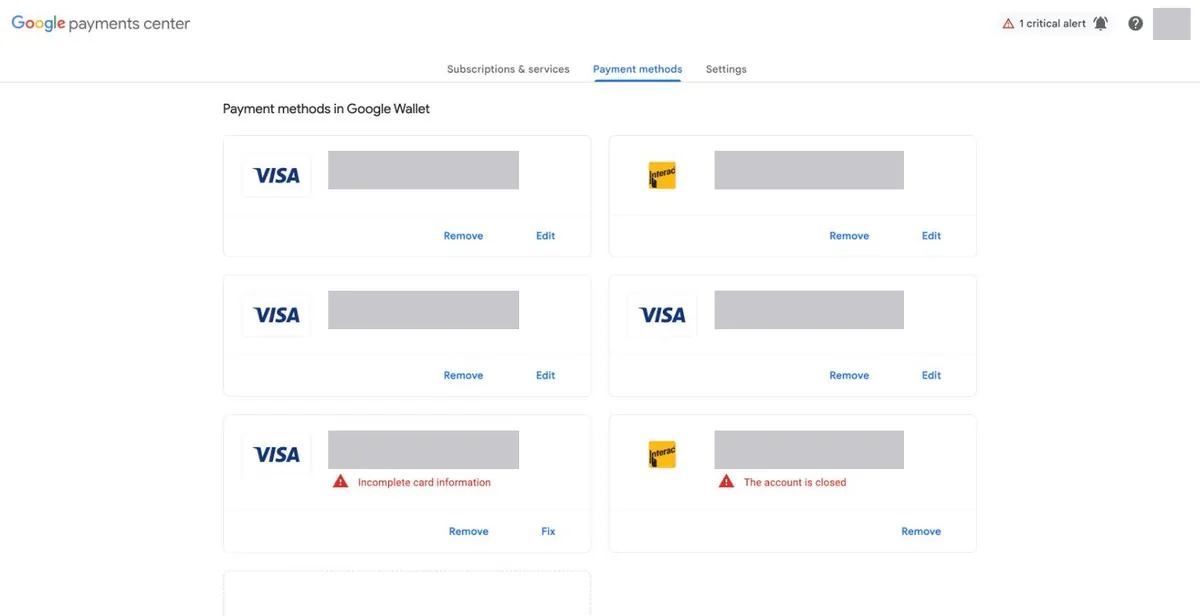
Payment methods list (card numbers masked) - 4
Add payment method
Scroll down and click "+ Add payment method".
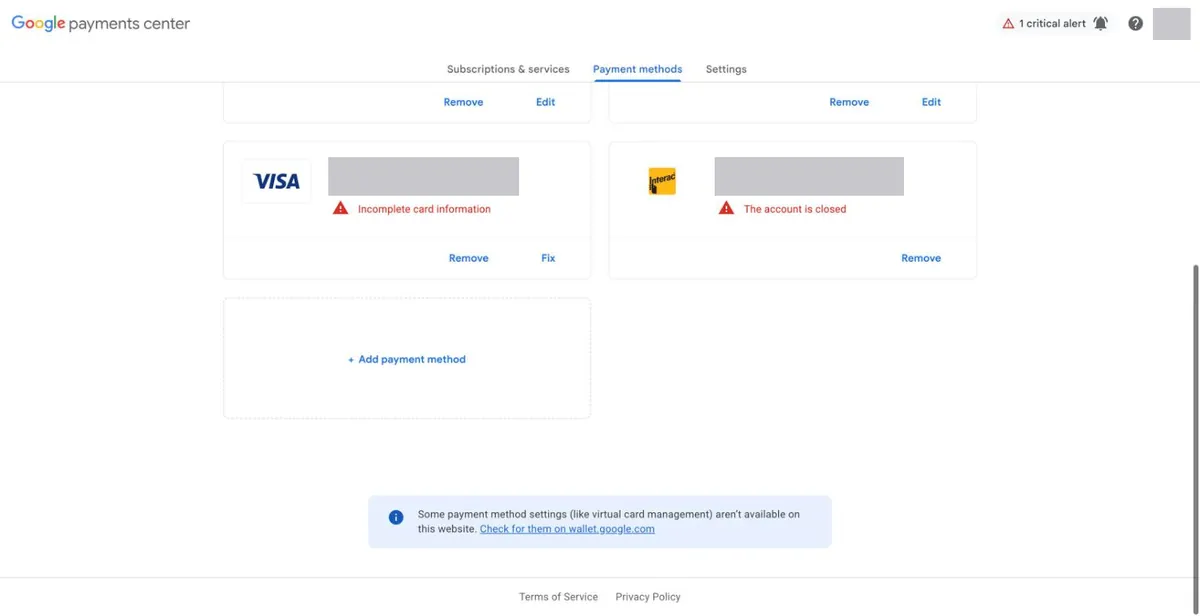
"+ Add payment method" at the bottom - 5
Enter the card
Type the card number; expiry, CVC, cardholder name and billing address fields appear. Fill them from your card email and click Save.
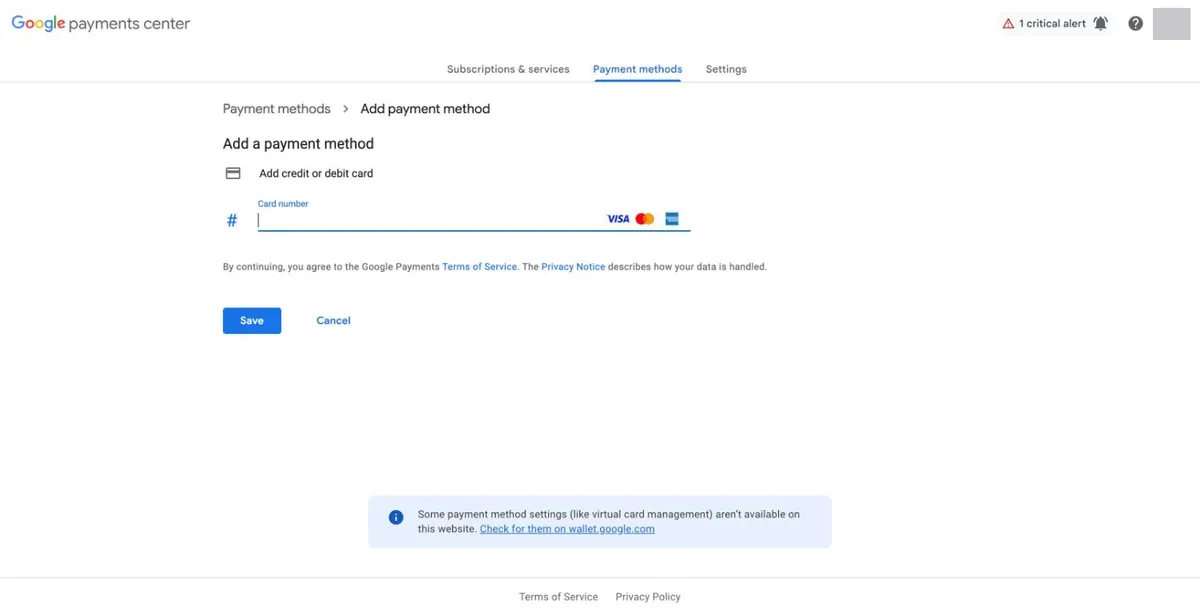
The add-card form (empty) - 6
Subscribe
Go back to the plans page from step 2 and subscribe, choosing the card you just added.
Screenshot coming — follow the text above for now.
Common reasons it fails
Why Google charges on our cards failed over the last 60 days (share of failed charges):
- About 59%: not enough balance — mostly one or two empty cards that subscriptions such as YouTube Premium kept retrying.
- About 22%: merchant type not supported (MCC restricted) — small in-app and game purchases in Google Play, which the card network does not support. Google One / Gemini subscriptions are not affected; we have successful charges for them.
- About 19%: the card was already cancelled (Blocked) and Google kept charging the old card. Remove it at pay.google.com and add your current card.
Check the balance and transactions, or top up this card: Card lookup & top-up
Google temporary hold or verification charge? Read: GOOGLE *TEMPORARY HOLD explained
Still stuck? Contact support
Tell us which step failed and what the page said — a screenshot helps.